
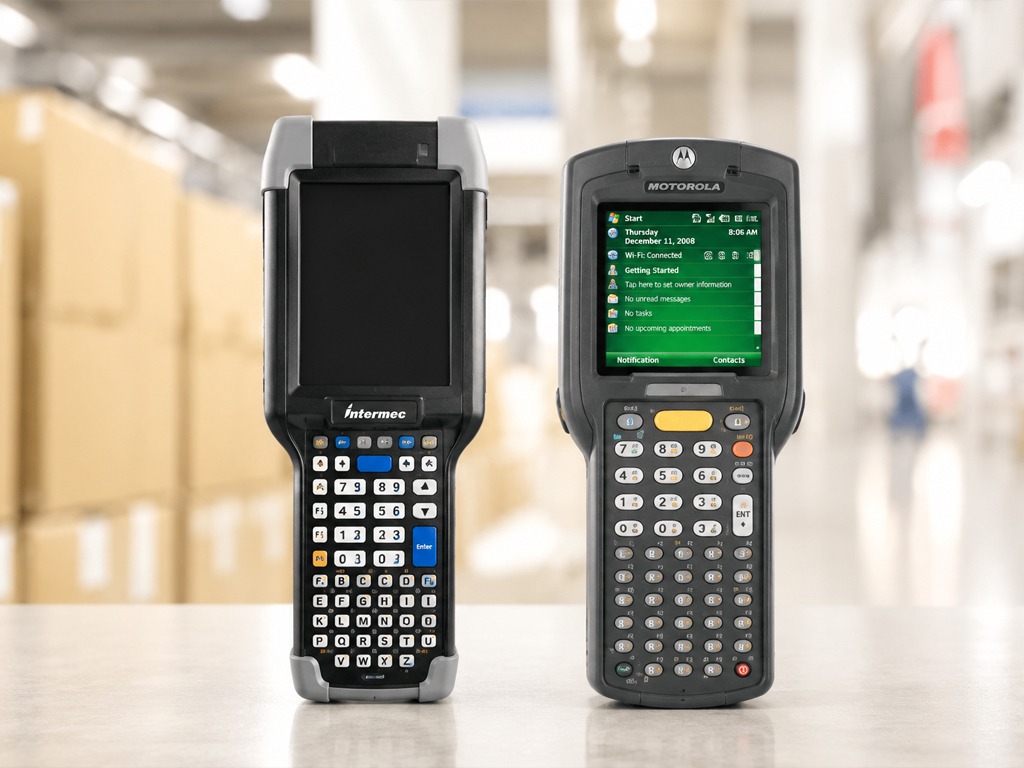
Honeywell barcode scanners are used across UK warehouses, logistics businesses, retail stores, manufacturing sites, healthcare environments and field service teams. When they stop working properly, it can quickly slow down picking, packing, stock control, point of sale, delivery scanning or asset tracking.
The good news is that not every fault means the scanner needs replacing. Some problems are caused by a simple setting, flat battery, dirty scan window or connection issue. Others point to damaged hardware, especially if the scanner has been dropped, will not charge, will not power on or has stopped reading barcodes altogether.
Before you start troubleshooting
Before changing settings or resetting the scanner, it is worth doing a few basic checks. These help you understand whether the issue is likely to be software, configuration, connection related or physical damage.
Start by checking whether the scanner powers on, charges correctly and responds when the trigger is pressed. Then test it against a clean, good quality barcode that you know works with another scanner. If possible, test the scanner with another cable, cradle, battery or host device.
You should also consider what happened before the fault started. A scanner that stopped working after a drop is very different from a scanner that suddenly stopped sending data after being moved to a new PC, till system or warehouse application.
Scanner will not power on
If the scanner shows no signs of life, the fault is usually linked to power, battery condition, charging contacts or internal board damage.
A removable battery may simply be flat, badly seated or no longer holding charge. In heavy use environments, batteries naturally degrade and often need replacing after sustained daily charging cycles. If the scanner uses a cradle, dirty or damaged contacts can also prevent power from reaching the device.
Check the battery is properly fitted and the latch is secure. Inspect the battery contacts for dirt, corrosion or debris. If you have access to another compatible battery, test the scanner with that. You should also try a known working charging cable, power supply or cradle.
If the scanner still does not power on after those checks, the issue may be a damaged power button, failed charging circuit, internal connector fault or board level problem. This is especially likely if the device has been dropped or exposed to moisture.
Scanner will not charge
Charging issues can be caused by the scanner, the battery, the cable, the cradle or the charging contacts. It is important to isolate which part is failing before assuming the scanner itself is faulty.
Look closely at the charging contacts on the scanner and cradle. Dust, warehouse debris or corrosion can stop the connection from working properly. Clean the contacts carefully with a dry lint free cloth and test the device again.
If the scanner charges in one cradle but not another, the cradle or power supply may be the problem. If another scanner charges in the same cradle, the fault is more likely to be with the original scanner or its battery.
A loose USB socket, damaged charging port or broken charging pin usually needs repair. If the scanner only charges when held at a certain angle, this is a strong sign of physical port damage.
Scanner powers on but will not scan
If the scanner turns on but will not read barcodes, the issue may be configuration related or hardware related.
First, check whether the aiming beam, laser or illumination appears when the trigger is pressed. If there is no light, no sound and no scan attempt, the trigger, scan engine or internal connection may have failed.
If the scanner does attempt to scan, test it against a clear barcode that is not faded, scratched, reflective or poorly printed. Barcode quality matters. A scanner may fail on damaged warehouse labels but work perfectly on a clean test label.
If the scanner reads some barcodes but not others, the device may not be configured to read that barcode type. Honeywell scanners can usually be set to enable or disable specific symbologies such as Code 128, Code 39, EAN, UPC, PDF417, Data Matrix and QR codes.
If the scanner was working before a settings change, software update or move to a new system, configuration is more likely. If it stopped working after impact, moisture exposure or visible damage, hardware repair is more likely.
Scanner beeps but does not enter data
A scanner that beeps but does not enter data can be frustrating because it feels like the barcode has been read, but nothing appears in the software.
In this situation, open a simple text editor and scan into a blank document. If the barcode appears there, the scanner is reading correctly and the problem is probably with the application, field focus or software settings.
If the scanner beeps but no data appears anywhere, the scanner may be in the wrong interface mode. Honeywell scanners can often be configured for different connection types, including keyboard emulation, USB HID and USB COM. If the software expects one mode and the scanner is set to another, scans may not be received correctly.
Prefix and suffix settings can also cause output issues. For example, a warehouse system may need the scanner to send Enter or Tab after each scan. Without the correct suffix, the scan may appear to fail even though the data has been captured.
Scanner only reads some barcodes
When a Honeywell scanner reads one type of barcode but not another, the device is rarely completely broken. This usually points to barcode format, symbology settings, label quality or scanner capability.
For example, not every scanner can read 2D codes. A 1D barcode scanner may read traditional linear barcodes but fail on QR codes or Data Matrix codes. In other cases, the scanner may support the barcode type, but that symbology has not been enabled.
Label condition can also be the issue. Faded labels, low contrast printing, damaged surfaces, small barcodes and reflective materials can all reduce scan accuracy. This is common in warehouses where labels are exposed to handling, dust, sunlight, moisture or abrasion.
If the scanner reads a clean version of the same barcode type, the issue is likely label quality. If it cannot read that barcode type at all, check the scanner settings and model capability.
Scanner will not read QR codes
If the scanner will not read QR codes, the first question is whether the model supports 2D scanning. A QR code requires a 2D capable scanner or imager. A 1D laser scanner will not read QR codes, even if it is working correctly.
If the scanner does support 2D codes, check whether QR code reading is enabled in the scanner configuration. Also test with a larger, high contrast printed QR code. Small QR codes, low screen brightness and damaged labels can all cause scanning problems.
If the scanner previously read QR codes but has now stopped, and no settings have changed, inspect the scan window. A cracked or scratched window can affect 2D scanning more noticeably because the scanner needs a clear image to decode the code.
Wireless scanner keeps disconnecting
Wireless scanner faults are often linked to pairing, battery condition, range, interference or base station issues.
If the scanner disconnects from Bluetooth or its base station, start by checking the battery. Low or failing batteries can cause unstable wireless behaviour. Then confirm the scanner is paired to the correct host device or cradle.
In warehouse environments, wireless interference and distance can also be factors. Racking, machinery, other wireless devices and building layout can all affect signal strength.
If the scanner works close to the base station but disconnects further away, the issue may be range or interference. If it disconnects even when close to the base, the problem may be the scanner, cradle, battery or wireless module.
Bluetooth pairing will not work
Bluetooth pairing issues are usually caused by old pairings, incorrect pairing mode or a host device that is still trying to connect to a previous scanner.
Clear old Bluetooth pairings from the host device and restart both devices. Put the scanner back into pairing mode and follow the correct pairing process for that model. If the scanner uses a pairing barcode, make sure you are scanning the correct code for the base or host device.
If pairing still fails, a factory reset may help if the scanner is physically working. If the scanner cannot enter pairing mode, will not scan the pairing barcode or drops the connection immediately, further diagnostics may be needed.
Cradle or base station problems
For wireless Honeywell scanners, the cradle or base station can be just as important as the scanner itself. It may handle charging, pairing and data transfer.
If the scanner is not charging in the cradle, inspect the contacts on both the scanner and cradle. If the scanner is not communicating with the base, check the cable, host mode and pairing status.
A flashing or unexpected light on the base station can indicate a communication, power or hardware issue. If possible, test another scanner in the same cradle. This can help show whether the fault sits with the scanner or the base.
If the cradle has damaged pins, does not power on or fails with multiple scanners, the cradle may need repair or replacement.
Scanner is not detected by a PC
If a PC does not recognise the scanner, the problem may be the USB cable, port, driver or interface mode.
Try a different USB port and a known working cable. Check whether the scanner appears in the device manager or relevant software. If the cable connection feels loose or the scanner disconnects when moved, the USB port on the scanner may be damaged.
Interface mode is also important. Some systems expect the scanner to behave like a keyboard. Others require a virtual COM port. If the mode is wrong, the scanner may appear connected but fail to send data correctly.
This is common when a scanner has been moved from one system to another, especially between POS software, warehouse management systems and older Windows machines.
Output appears wrong in the software
Sometimes the scanner is reading the barcode, but the data appears incorrectly. You may see missing characters, extra characters, duplicate scans, no line break, no Tab command or data entering the wrong field.
This is normally a configuration issue rather than a hardware fault.
Check the scanner prefix and suffix settings. Many systems need a specific command after each scan, such as Enter or Tab. Also check the keyboard region. In the UK, mismatched keyboard settings can cause certain characters to appear incorrectly.
If data is appearing in the wrong field, the active software window or cursor position may be the issue. Test in a blank document to confirm whether the scanner output itself is correct.
Scanner is slow or inconsistent
Slow scanning can be caused by barcode quality, dirty glass, poor lighting, incorrect settings or a failing scan engine.
Clean the scanner window first. Even a small amount of dust, grease or scratching can affect scan quality. Then test in different lighting conditions and with a clean barcode.
If the scanner struggles with small, dense, faded or reflective labels, it may need configuration changes. Some scanners allow enhanced decode settings or adjustments for more difficult barcode types.
If the scanner has become slow across all barcode types and all environments, the imager, laser or internal scan engine may be wearing out or damaged.
Scanner window is dirty, cracked or scratched
The scan window protects the internal scanning components. If it becomes dirty, scratched or cracked, the scanner may still power on and attempt to scan but fail to decode barcodes reliably.
A dirty window should be cleaned carefully. A cracked or heavily scratched window usually needs replacement. Continuing to use the scanner with a damaged window can make scanning slower and less accurate, particularly for smaller or more complex barcodes.
If the window damage happened after a drop, there may also be internal damage that is not immediately visible.
Scanner has been dropped
Drop damage is one of the most common causes of scanner failure. Even if the outer casing looks intact, the impact can loosen internal connectors, damage the scan engine, crack the screen, affect the trigger or damage the board.
After a drop, look for changes in behaviour. Does the scanner still power on? Does the trigger respond? Does the beam or imager activate? Does it charge normally? Does the screen flicker or fail to respond?
If the scanner stopped working immediately after impact, a reset is unlikely to fix the issue. The device should be inspected for internal damage.
Screen is smashed or touch input does not work
Many Honeywell handheld scanners and mobile computers rely on the screen for applications, settings and workflow tasks. A smashed screen may affect visibility, touch input and the internal components behind the display.
Stop using the device if the glass is loose, sharp or spreading. If the touchscreen is unreliable, staff may enter incorrect information or be unable to complete tasks properly.
Screen replacement is a common repair for rugged handheld devices. If the scan function also stopped working after the same impact, the device may need a wider diagnostic check.
Resetting a Honeywell scanner
A reset can help when the scanner is physically working but behaving incorrectly. It is most useful when settings have been changed, the scanner is in the wrong interface mode, barcode types have been disabled or pairing information needs to be cleared.
Most Honeywell scanners are reset by scanning a factory default barcode from the correct user guide for that specific model. It is important to use the correct guide because reset barcodes and configuration options can vary between models.
After resetting, the scanner may need to be configured again for the correct host mode, barcode types, prefix and suffix settings, Bluetooth pairing or software requirements.
A reset is unlikely to fix a scanner that will not power on, will not charge, has a broken trigger, has a cracked scan window or has suffered internal damage.
Configuration barcodes are not applying
Honeywell configuration barcodes are used to change settings, enable barcode types, reset the scanner and adjust how data is sent to a host system.
If configuration barcodes are not applying, check whether the scanner can read normal barcodes first. If it cannot read any barcode, the issue is likely with the scan function itself.
If it can read normal barcodes but not configuration codes, make sure you are using the right manual for the exact model. Print the configuration barcode clearly if scanning from a screen is unreliable. Some devices may also require a specific programming mode before settings can be changed.
If configuration still fails, the device may have a firmware issue, memory fault or locked configuration.
Firmware and software issues
Firmware problems can cause scanners to freeze, fail to apply settings, behave inconsistently or stop communicating with software. Software issues can also make a working scanner appear faulty.
If a scanner works in a text editor but not in your warehouse or POS software, the scanner may not be the root cause. Check the software field, input method, driver, interface mode and suffix settings.
Firmware updates can resolve some problems, but they should be handled carefully. A failed firmware update can leave the device unusable and may require professional intervention.
Legacy Intermec scanners
Intermec is relevant because many older Intermec barcode scanners and mobile computers became part of the Honeywell ecosystem. Some UK businesses still use Intermec devices in warehouses, logistics and field operations, and many teams still refer to them by the Intermec name.
The same basic checks apply. Start with power, battery condition, charging contacts, scan window, cradle connection, barcode settings and host mode. With older devices, parts availability, worn batteries, outdated firmware and legacy software compatibility can also become factors.
If an Intermec scanner is still critical to your operation, professional diagnostics can help confirm whether it is repairable or whether replacement planning is more sensible.
When troubleshooting is enough
Troubleshooting is usually worth doing when the scanner powers on, appears physically intact and the issue started after a change in settings, software, pairing or host device.
You may be able to resolve problems linked to interface mode, barcode symbology, Bluetooth pairing, prefix and suffix settings, keyboard layout, dirty scan windows or poor quality labels.
In these cases, a reset, reconfiguration or simple cleaning process may restore the scanner without repair.
When the scanner needs professional repair
Professional repair is usually the right next step when there are signs of physical damage, power failure or hardware faults.
Arrange a repair if the scanner will not power on after battery and charging checks, will not charge with known working equipment, has a loose charging port, has a cracked scan window, has a smashed screen, does not activate the scan beam, has a broken trigger or keeps failing after being reset.
You should also seek repair support if the scanner overheats, disconnects constantly, has intermittent power after a drop or has failed during a firmware update.
Hardware faults cannot usually be solved through configuration changes. Continuing to use a damaged scanner can make the problem worse and may cause further disruption later.
Need help with a faulty Honeywell scanner?
If your Honeywell scanner has stopped working, will not scan, will not charge, keeps disconnecting or has been damaged, Mobile Computer Repair can help diagnose the fault and advise the most practical repair route.
Whether the issue is a simple configuration problem or a physical hardware fault, getting the device checked properly can reduce downtime and help keep your warehouse, retail or field operation moving.